
MemberMailer Documentation
MemberMailer 1.2.1 | Joomla 6.0 or later | PHP 8.3 or later
MemberMailer provides mailing lists, subscriber management, public signup, mailshots, queued delivery and Joomla Scheduler integration. The package contains the MemberMailer component, Signup module, Sender task plugin, Event Digest task plugin, Article Notifications content plugin and Article Processor task plugin.
MemberMailer uses one shared sending system. Ordinary mailshots, Article Notifications and Event Digests all create frozen revisions and queues; the separate Sender delivers queued recipients through Joomla's configured mailer.
Quick Start
- Install MemberMailer. In Joomla Administrator go to System → Install → Extensions and upload the complete MemberMailer package ZIP.
- Check Joomla email. Go to System → Global Configuration → Server → Mail and confirm Joomla can successfully send a test email.
- Create a mailing list. Go to Components → MemberMailer → Mailing Lists → New.
- Publish the Signup module. Assign it to the pages where visitors should be able to subscribe.
- Create a mailshot. Go to Components → MemberMailer → Mailshots → New, choose a target audience and write the message.
- Create the Sender task. Enable the MemberMailer Sender task plugin and create the Send MemberMailer queue Scheduled Task.
- Test first. Use Send Test Email, then create a small recipient queue before sending to a larger audience.
Documentation Contents
Getting Started
Sending Email
Pro Integrations
Administration
MemberMailer Free vs Pro
| Feature | MemberMailer | MemberMailer Pro |
|---|---|---|
| Subscriber management | ✓ | ✓ |
| Mailing lists | ✓ | ✓ |
| Ordinary mailshots | ✓ | ✓ |
| Queued sending | ✓ | ✓ |
| Name personalisation | ✓ | ✓ |
| Public signup | One mailing list | Multiple selectable lists |
| CSV upload, preview and mapping | ✓ | ✓ |
| CSV Import / Update | — | ✓ |
| Joomla Article Notifications | — | ✓ |
| Events Booking Digest integration | — | ✓ |
| Membership Pro plan audiences | — | ✓ |
MemberMailer Pro is £39 per year. It may be installed on multiple websites and includes support for one nominated website.
Download, Installation and Updates
Back up the site's files and database before installing or upgrading.
- Open System → Install → Extensions.
- Choose Upload Package File.
- Upload the complete MemberMailer ZIP.
A fresh installation does not create or enable Joomla Scheduled Task records automatically. After installation, check System → Manage → Extensions and confirm the package and six bundled extensions report the expected version.
What's installed
- MemberMailer Component
- MemberMailer Signup Module
- MemberMailer Sender Task Plugin
- MemberMailer Event Digest Task Plugin
- MemberMailer Article Notifications Content Plugin
- MemberMailer Article Processor Task Plugin
The Pro package supports Joomla's Download Key mechanism. If your Melic Systems account provides a Download ID, enter it in System → Update → Update Sites → MemberMailer Updates → Download Key. Keep the key private and do not include it in screenshots or support messages.
Free and Pro use separate update feeds so a Free installation stays on the Free channel and a Pro installation stays on the Pro channel.
Joomla Mail Transport and SMTP
MemberMailer uses Joomla's mailer. There is no separate MemberMailer SMTP account.
Open System → Global Configuration → Server → Mail. Joomla's Send Mail setting must permit mail when delivery is intended. If you use SMTP, configure the SMTP host, port, security, authentication, username and password supplied by your mail provider. Set From Email and From Name to an identity authorised by that provider.
First test Joomla's mail transport with an address you control. Then test a MemberMailer message and finally a small queue. A successful mailer result means the configured transport accepted the message; it does not prove inbox delivery. Check the destination mailbox and Spam/Junk.
During queue inspection, keep the MemberMailer Sender Scheduled Task disabled. Disabling the Sender does not disable Joomla mail tests, public signup confirmation messages or MemberMailer's explicit Send Test Email action.
Create Mailing Lists and Public Signup
- Open Components → MemberMailer → Mailing Lists → New.
- Enter a title and optional description. Leave Alias blank to generate it automatically, or enter a unique alias.
- Set the list to Published.
- Enable Public Signup if visitors should be able to join the list.
- Publish the MemberMailer Signup site module and assign it to the required pages.
Public signup always uses confirmation before a new subscription becomes deliverable. A confirmed subscriber must also be globally active and subscribed to the target list. Pending, unsubscribed and hard-suppressed records are excluded from ordinary mailing-list delivery.
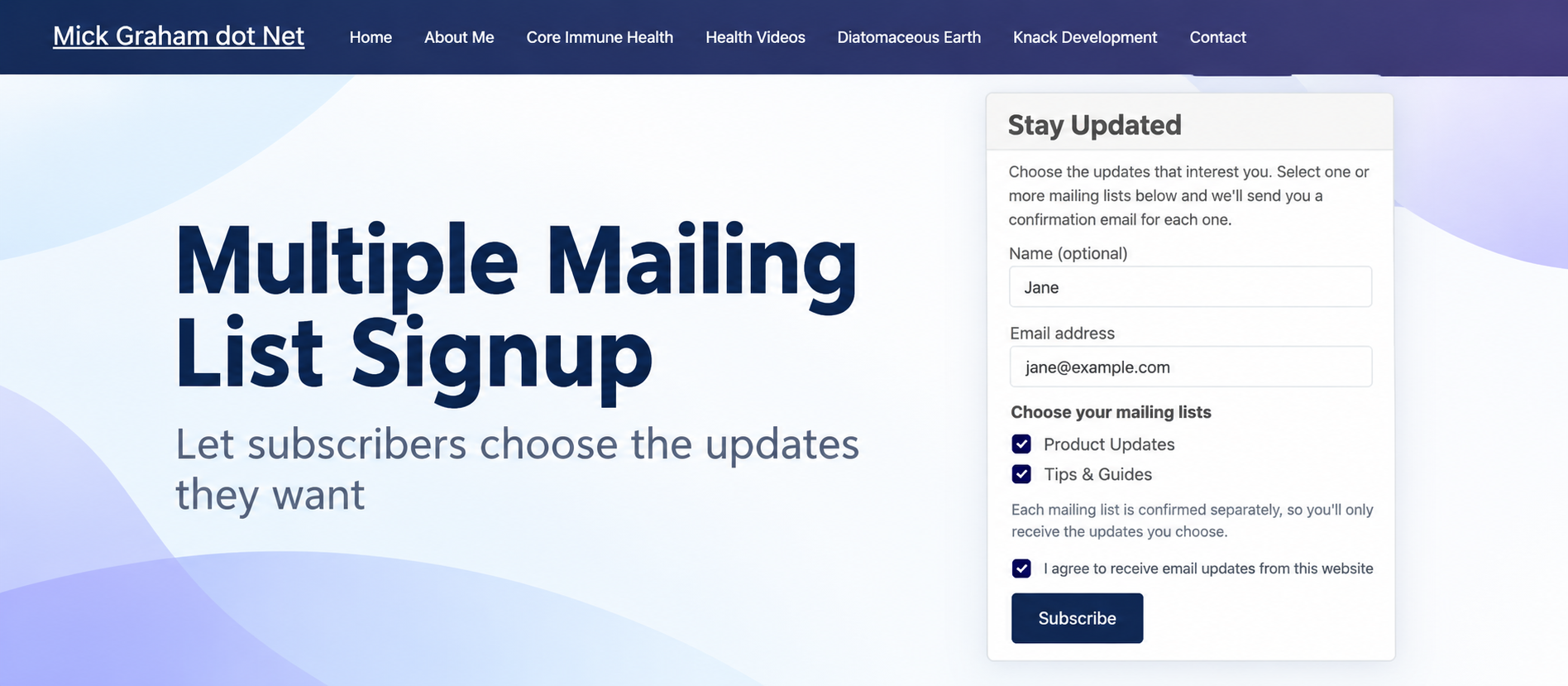
In MemberMailer Free, a signup form can expose one mailing list. In MemberMailer Pro, the module can expose multiple published Public Signup lists so the visitor can choose interests.
Confirmation links expire and replacement links invalidate earlier ones. Repeat confirmation requests are rate-limited. The public unsubscribe/manage-subscription flow can support list-level or global unsubscribe without requiring a Joomla login.
Ordinary Mailshots
- Open Components → MemberMailer → Mailshots → New.
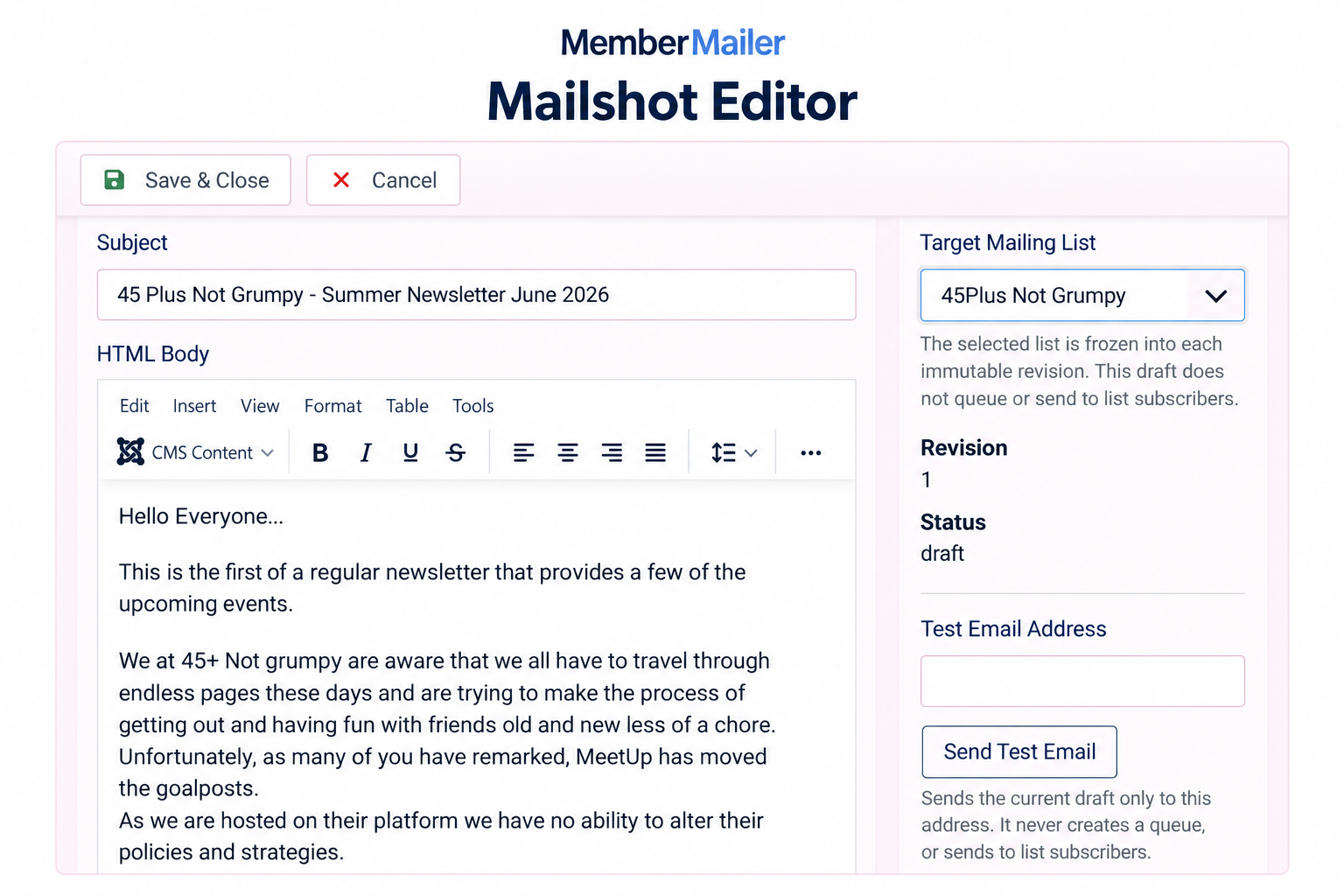
- Enter the subject, choose a target MemberMailer mailing list and write the message using Joomla's configured editor.
- Personalise the subject or body with
{first_name}for the subscriber's first name or{display_name}for the full display name. If no name is available, MemberMailer uses Friend. - Save and preview the draft.
- Use Send Test Email with an address you control if required. A test email does not create a recipient queue.
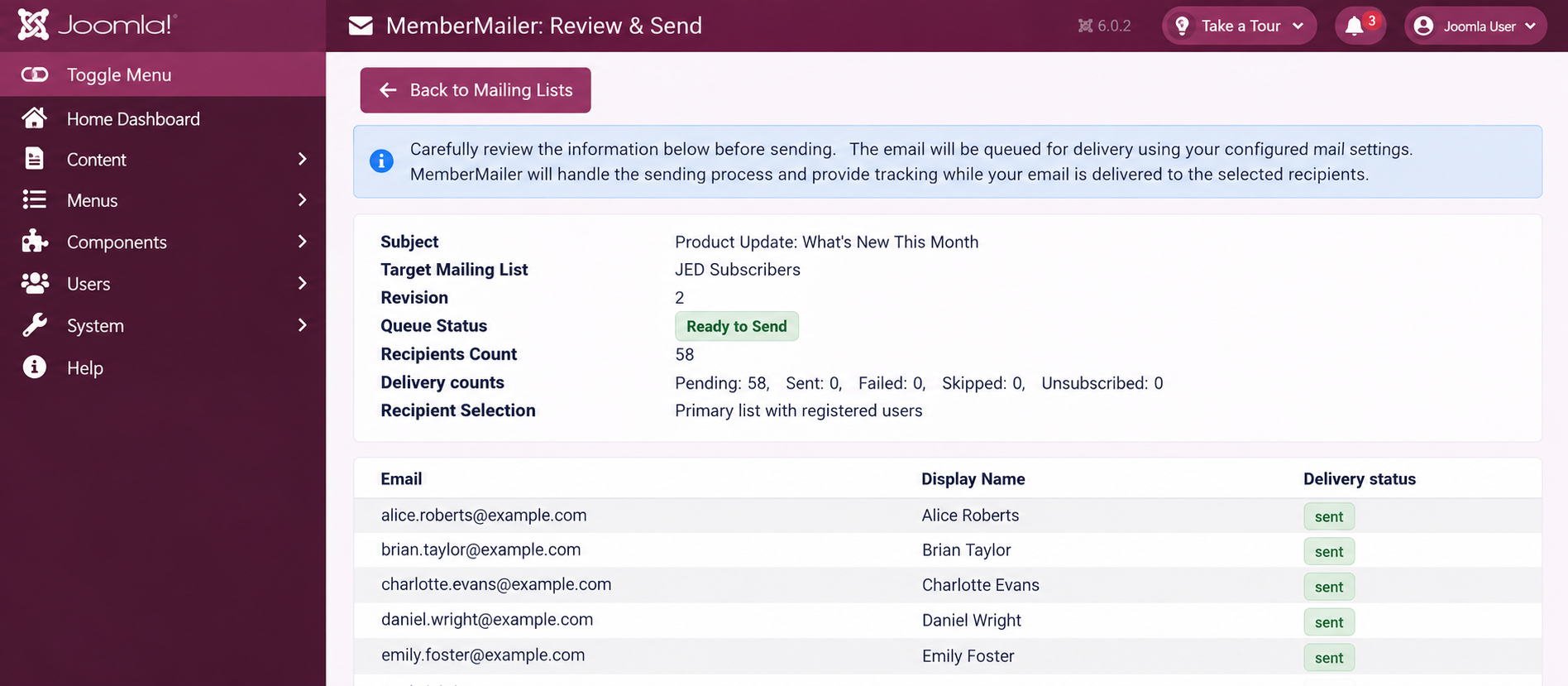
- Open Recipients / Queue and review the currently eligible audience.
- Create the queue. Queue creation freezes the saved revision and recipient snapshot; it does not itself send email.
- Enable and run the separate Sender task when you are ready for delivery.
Only standard draft mailshots are editable. Generated Article Notifications and Event Digests open as read-only saved-content previews.
CSV Import / Update
CSV Import / Update is available under Components → MemberMailer.
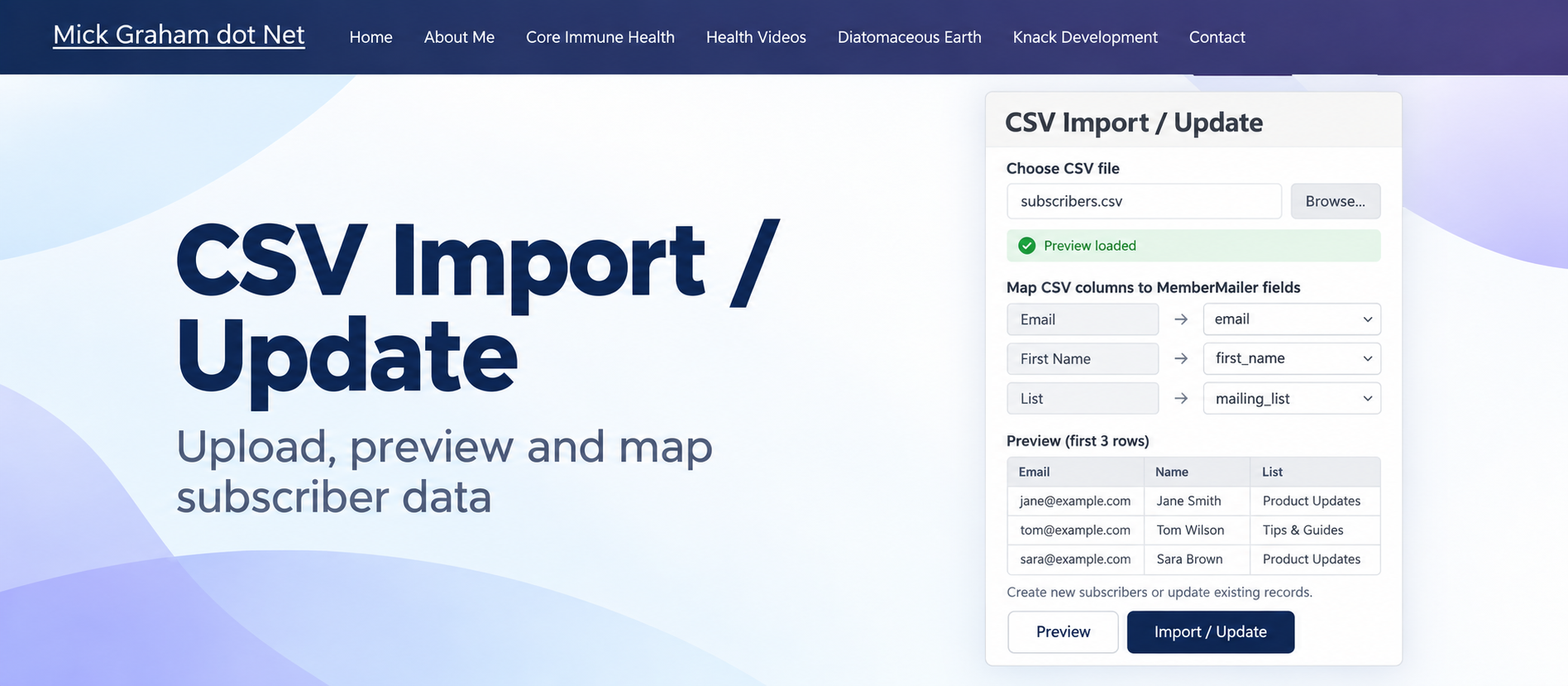
The first row must contain headings. Comma, semicolon and tab-delimited files are detected automatically. Map the email column and, optionally, the subscriber display name. MemberMailer shows the first five data rows for checking before import.
Choose one or more target mailing lists. Existing subscribers are matched by email. The importer can add new subscribers, update names and add selected list memberships, but it does not remove existing memberships.
The importer does not silently reactivate a globally unsubscribed or suppressed subscriber and does not override an existing list-level unsubscribe. Before a Pro import runs, the administrator must confirm that the contacts have permission to receive email from the site.
MemberMailer Free can upload, preview and map the CSV. Completing Import / Update is a MemberMailer Pro feature.
Membership Pro Plan Audiences
Membership Pro integration is a MemberMailer Pro feature. Membership Pro is not required for normal MemberMailer mailing lists, signup, mailshots, Article Notifications or Event Digests.
When Membership Pro is installed, a normal mailshot can target a published Membership Pro plan instead of a MemberMailer mailing list. Choose the Membership Pro plan on the Mailshot screen.
The plan audience is refreshed from current active Membership Pro members when the audience is prepared and when the queue is created. Membership Pro is the source of truth for that audience.
- Active plan membership determines inclusion.
- Ordinary MemberMailer global or list unsubscribe does not remove an active plan member from the plan audience.
- Hard suppression still excludes the recipient.
- The normal MemberMailer newsletter unsubscribe link is not appended.
- A member who is no longer active in the plan is excluded from future plan mailshots.
Review the eligible-recipient preview before creating the queue.
Events Booking Digest Integration
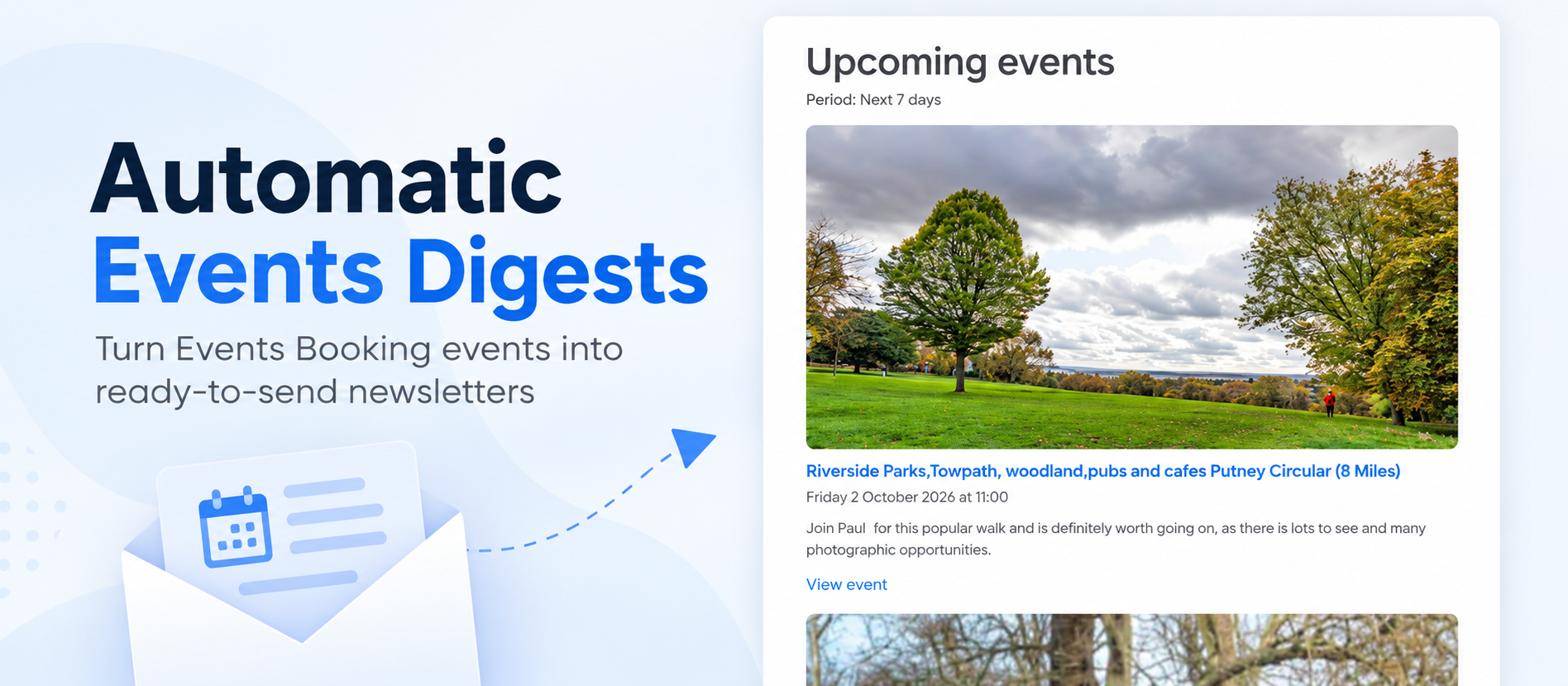
Events Booking Digest automation is a MemberMailer Pro feature. Events Booking itself is only required if event-generated digests are needed.
Enable Task - MemberMailer Event Digest and create a Joomla Scheduled Task using Generate MemberMailer Event Digest.
Configure:
- Public site URL
- Digest heading
- Events to include: Today, Next 7 days, Next 14 days or Next calendar month
- One or more published Events Booking categories, or explicitly All Events
- A published target MemberMailer mailing list
- Automatically queue generated digest
An empty category selection does not mean all events.
Automatically queue generated digest defaults to Off. Off creates a reviewable frozen draft for later manual queueing. On queues the generated revision for eligible subscribers. In both cases the separate Sender performs delivery; the Event Digest task does not send email itself.
Repeated runs for the same digest selection and period reuse the existing frozen revision and existing queue. Completed or cancelled queues are not restarted. If queueing fails or no recipients are eligible, the frozen draft remains available and task output explains the result.
If Events Booking is unavailable, the Event Digest task creates no draft.
Joomla Article Notifications
Joomla Article Notifications are a MemberMailer Pro feature. Events Booking and Membership Pro are not required.
Joomla Article Category
↓
MemberMailer Article Notifications
↓
MemberMailer Mailing List
↓
Subscriber Queue
↓
MemberMailer Sender
The Joomla plugin Enabled state is the Article Notifications integration switch. There is no separate internal Enable article notifications option.
Open System → Plugins → Content - MemberMailer Article Notifications. Confirm the plugin is Enabled and configure one or more mappings. Each mapping links:
- a Joomla article category
- a published MemberMailer mailing list
- a notification mode:
- Published Articles Only
- Article Updates Only
- Published Articles and Updates
Select child categories separately when required.
Enable Task - MemberMailer Article Processor. Then create and enable a Joomla Scheduled Task using MemberMailer: Process article notifications. Its processing limit defaults to 25 and has a maximum of 100. The limit bounds pending notifications prepared per run; discovery scans all articles in the configured categories.
Initial Article Notifications Setup and Testing
- Configure the Article Notifications plugin and its Category → Mailing List mappings.
- Enable the Article Processor plugin and create MemberMailer: Process article notifications.
- Run the processor once before publishing articles that should notify subscribers. This first run records the baseline and does not send historical articles.
- Publish a new article in one of the mapped categories.
- Run the Article Processor again. A generated Article Notification mailshot should appear in MemberMailer.
- Inspect the generated mailshot and queue.
- Enable and run the normal MemberMailer Sender task to deliver queued notifications.
For cautious testing, leave the Sender disabled while inspecting generated mailshots and queues, then re-enable it when you are ready to deliver.
Article Baseline and Configuration Changes
The first processing run records a baseline and sends no historical articles.
Adding or removing mappings, changing the target mailing list or changing the notification mode resets the relevant configuration baseline without sending historical articles. Pending work from an old configuration is retired, and queued article notifications from that old configuration no longer pass the delivery check.
If you disable Article Notifications, run the processor once while disabled to record the disabled checkpoint before re-enabling. Re-enabling then establishes a fresh baseline.
Eligible Articles
Publication requires the article and its category ancestry to be published and accessible to an anonymous visitor.
Restricted-access articles are excluded, even if the recipient is a registered user. Draft, unpublished, archived, trashed, expired and future-dated articles do not generate notifications.
Scheduled publication is discovered on the first processor run after the publication time without requiring another article save. Processing uses Joomla UTC publication dates.
An article that becomes public for the first time qualifies as a new publication. Simply unpublishing and republishing unchanged notified content does not create another notification.
Meaningful Article Updates
Meaningful content comprises:
- title
- introduction
- full text
- image metadata
- alias
- category
- language
Save timestamps, hit counters, check-in and workflow metadata do not trigger notifications. Changes between processor runs are coalesced into the content observed by the processor. Repeated saves and previously notified identical content do not create duplicate notifications within the same configuration.
The notification freezes the article title, a plain-text introduction excerpt and the routed article link. It does not execute article content plugins or include custom-field output.
Article Queueing and Delivery
Article queueing uses MemberMailer's existing consent, suppression and duplicate-email checks.
The Sender checks consent again, includes the recipient-specific unsubscribe link, and rechecks the article's current publication/access state and current Article Notifications configuration immediately before delivery.
These extra article checks apply only to Article Notifications. They do not apply to ordinary mailshots or Event Digests.
Generated Article Notification mailshots are read-only. Completed and cancelled queues are never restarted.
Article Task Output
Task output distinguishes baseline, prepared, queued, existing queues, skipped and failed work.
No eligible recipients is a terminal skipped notification. Later subscribers do not revive it, although a later meaningful article update can create a new notification.
A draft whose queue preparation failed is retained and retried using the same frozen revision. Review failed task output before retrying and review delivery skips in the queue view.
Before live Article Notification delivery, test baseline initialization, new publication, scheduled publication, unchanged saves, meaningful updates, restricted articles and the chosen Category → Mailing List mappings.
Scheduler and Cron
MemberMailer uses Joomla Scheduled Tasks. A plugin supplies the routine; a Scheduled Task record determines when Joomla runs it.
Send MemberMailer queue
Delivers queued MemberMailer recipients through Joomla's configured mailer.
Generate MemberMailer Event Digest
Builds Events Booking digest mailshots for the configured period and categories.
Process article notifications
Discovers qualifying Joomla article publications and meaningful updates.
In System → Manage → Plugins, enable the task plugins you need. Then open System → Manage → Scheduled Tasks and create the required task records.
Configure the Sender's Maximum recipients per run and Execution-time limit to suit your mail provider. Enter the correct Public site URL in tasks that request it.
For dependable automation, use server cron to invoke Joomla's Scheduler independently of website traffic. Ask your hosting provider for the PHP 8.3 CLI executable and the absolute Joomla root path.
* * * * * /path/to/php-8.3 /path/to/joomla/cli/joomla.php scheduler:run --all --no-interaction --live-site=https://your-site.exampleCron can invoke Joomla's Scheduler every minute while each Scheduled Task keeps its own Joomla schedule. If cron is your chosen trigger, disable Joomla Lazy Scheduler to avoid relying on site traffic.
The scheduler command can run due tasks belonging to other extensions as well as MemberMailer. Review cron output, Joomla task results and MemberMailer queue state. Task output alone does not prove inbox delivery.
Check an Upgrade
Before upgrading:
- back up files and database
- note existing list/subscriber counts and important task settings
- disable the Sender if you want to inspect queues without delivery
Install the new package over the existing installation. Do not uninstall first.
After upgrading:
- confirm the package and six bundled extensions report the expected version
- confirm existing mailing lists and subscribers remain
- open an ordinary draft and verify editor content
- inspect existing queue states
- confirm generated mailshots still open read-only
- confirm Pro integrations are available if the Pro edition is installed
- for Article Notifications, keep the existing baseline when configuration is unchanged; upgrading alone should not request historical sends
If a rollback is required, restore the matching files-and-database backup. Installing an older ZIP alone is not a database rollback.
Uninstall and Data Deletion
There is no retain-data option. Back up or export any information you need before uninstalling. Do not uninstall as part of a normal upgrade.
The package uninstall removes only MemberMailer's three registered Joomla Scheduler routine types:
- Sender
- Event Digest
- Article Processor
External server cron entries are not removed. If you created a dedicated cron entry, remove or adjust it manually. A shared Joomla Scheduler cron may still be required by other extensions.
Troubleshooting
No confirmation email
Queue exists but no email arrives
Article Processor says Article integration is disabled
No generated Article Notification mailshot
Event Digest creates nothing
Membership Pro audience is empty
Updates and Support Terms
MemberMailer Free is free to use.
MemberMailer Pro is £39 per year. The Pro licence permits installation on multiple websites and includes support for one nominated website. Installed software continues working after the support/update term expires; renewal provides a further support/update term.
Keep any Download Key private.
Current documentation: MemberMailer 1.2.1 | Joomla 6.0 or later | PHP 8.3 or later